
Skip to content
Tutorial

How to download an available audio track

This guide explains saving audio-only media actually returned by a parser, using a public SoundCloud track as an example. Use Save audio when offered; video/audio pairs still use merging. This is not a general video-to-MP3 converter.

  • No account needed
  • Phone and desktop
  • Public links only

SniffVid TeamPublished Last reviewed

Bot protection

Paste a link above to see every available video, audio and cover download.

By using SniffVid you agree to our Terms of Service and Privacy Policy

The short answer

  • Look for the actual Save audio action. A SoundCloud page does not guarantee that every track downloads.
  • An audio-only result can be saved in the format supplied by the source.
  • Separate video/audio mode currently has a merge action, not an independent audio-save button.
  • No MP3 conversion, arbitrary file upload or audio extraction from a complete video file is provided.
  • A single track, a preview and a playlist are different results: no preview expansion or album/playlist bulk download is provided.

These points describe the current download workflow. See the page-specific verification note below for what was checked; upstream availability and returned tracks can change.

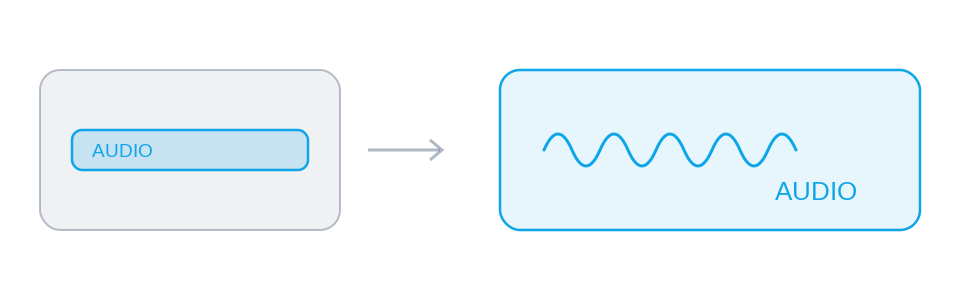
Separate landscape-video and audio-waveform tiles beside a larger tile holding both together.
Concept illustration: picture and sound can be separate resources. Use the actual save or merge action offered by the panel.

Step by step

Follow the controls actually offered by the result panel; formats and browser capabilities can vary.

  1. 1

    Copy one public SoundCloud track URL

    Use an individual soundcloud.com/{artist}/{track} URL and keep required parameters. Avoid an artist profile, album or playlist.

  2. 2

    Check the action in the result panel

    Save audio identifies an audio-only result. Merge & Save MP4 identifies the complementary-track workflow. If no usable media is returned, check the URL and access conditions.

  3. 3

    Save the available audio file

    Save the audio, or try the relay action if offered. Keep its actual extension and check duration and playback after completion. On Android, use Downloads or the file manager to locate it.

An audio-only resource leading to a saved audio file, without a video track.
An audio-only result offers Save audio. Separate video/audio mode offers merging rather than an independent audio-save action.

Use a public SoundCloud track to understand audio saving, separate-track merging, previews and format limits.

SoundCloud single tracks: inspect the result

Copy the original share URL from an individual track and parse it on the SoundCloud tool page or here. Even a public track may provide a preview, require additional access or return only a segmented playlist. None establishes a complete audio file; save the returned file when the audio-only action is available.

When audio-only saving is available

The panel chooses an audio track when no video track is present. This produces the audio-save action; the existence of music in a video does not itself create an audio-only download.

When the panel only offers merge

The current separate-track interface is designed to combine picture and sound. It does not expose a separate audio-download action there. Do not look for a button that the interface does not provide.

M4A, MP3 and other formats

Save the format actually returned. Changing the filename extension does not convert codecs, and this tool does not promise an MP3 output.

When only a complete video is returned

This page does not extract audio from an already muxed video or upload local files. You would need a separate extraction/conversion workflow.

After saving: check format, duration and quality

Keep the supplied M4A, MP3 or other extension and verify duration in a compatible player. If it is shorter than the track, check whether it is only a preview; renaming or parsing again does not guarantee the missing audio. The returned format and quality do not establish that it is the uploader's original file.

Reference

These tables are shared across the site, so a figure you saw on one page is the figure you see here.

Choose the available action based on the returned result
Returned resultAvailable actionKeep in mind
Audio-only trackSave audioKeep the supplied format; MP3 and original quality are not guaranteed.
Complementary video and audioMerge & Save MP4Separate-track mode has no independent audio-save button.
Complete video fileSave videoNo audio extraction from complete videos or local-file conversion.
Audio previewCheck duration after savingSaving does not extend a preview into a full track.

Background and edge cases

Preview tracks remain previews

A source may return only part of a track or require access for the full version. Downloading does not expand that preview.

Storage follows duration and bitrate

For an estimate, bitrate in kb/s × seconds ÷ 8000 gives roughly decimal MB. A longer recording uses more space at the same bitrate.

SoundCloud native downloads and in-app offline listening

SoundCloud documents a signed-in web Download file action for individual tracks when the uploader enables it, supplying the uploaded format. Not every track is downloadable, and a whole playlist is not offered as one download. In-app offline listening differs from exporting an independent audio file.

Frequently asked questions

No. SniffVid saves the returned audio resource without format conversion.

When both video and audio are returned, the current separate-track panel provides a merge action. Independent audio saving is available for an audio-only result.

No. This downloader operates on parsed links and does not provide local-file extraction.

Find it through the browser download list or Files. Use an audio player; Photos is not the destination for standalone audio.

No. If the source supplies a preview, saving cannot extend it. Check duration rather than treating successful parsing as a complete-track guarantee.

No. SniffVid saves what the current parser supplies, without promising an original file, lossless quality or a fixed bitrate. SoundCloud uploader-enabled native downloads are a separate workflow.

Check browser Downloads, then locate it by name or time in the file manager. Use an audio player; it is not a gallery video. Follow the Android saving guide for details.

How this was checked

How this was checked

Checked against the current audio-only save and separate-track merge controls, with SoundCloud official download guidance. This round did not establish a successful live track download or guarantee MP3, original quality or full-track availability.

  • The page-specific note states which behavior was reviewed and which live samples, if any, were tested.
  • Track availability depends on the parsing service. Table sizes are illustrative ranges, not measurements of every video.
  • A source may change or restrict access; the result panel is the reference for the current link.

Who maintains it

Written and reviewed by SniffVid Team, the people who build and run SniffVid. Guides answer practical questions and are updated as capabilities change. Product promotions are labeled separately. Read the editorial policy

Published · Last reviewed · Content last reviewed

Sources and further reading

Primary documentation for the claims on this page. Nothing here cites another downloader as an authority on how downloads behave.

Keep reading

Other tutorials, and the tool pages for the sites people download from most.

Tool pages for the biggest platforms

Dedicated pages combine the downloader with platform-specific link instructions and limits. Choose one below.