
Skip to content
Tutorial

How to save a downloaded video to Photos on iPhone

A browser download and an item in the Photos library are different things. First finish downloading a usable video file, then locate it in Files and use the available share/save action.

  • No account needed
  • Phone and desktop
  • Public links only

SniffVid TeamPublished Last reviewed

Bot protection

Paste a link above to see every available video, audio and cover download.

By using SniffVid you agree to our Terms of Service and Privacy Policy

The short answer

  • In Files, start with Browse → iCloud Drive → Downloads; also check the location configured for your browser.
  • Safari’s Downloads button can take you back to a recent download.
  • Photos accepts compatible video files; audio files and streaming playlists are different content types.
  • Merge support depends on browser APIs and storage. Do not assume that a phone will complete every merge.

These points describe the current download workflow. See the page-specific verification note below for what was checked; upstream availability and returned tracks can change.

An unbranded phone beside a glass file folder and a stack of landscape photo prints.
Concept illustration of a file and a photo library. System menus and supported file formats vary.

Step by step

Follow the controls actually offered by the result panel; formats and browser capabilities can vary.

  1. 1

    Download a usable video file

    Use the action shown in the result panel and wait for the browser download or merge to finish.

  2. 2

    Locate the file

    Check Safari’s download list or Files. Look in iCloud Drive → Downloads, then the browser’s configured location.

  3. 3

    Save a compatible video to Photos

    Open the file’s share menu and use Save Video if that action is available. If it is missing, check the file format and completion first.

A save sheet with a destination chosen, leading to the Files app listing a saved MP4.
Check Files → iCloud Drive → Downloads first, or use Safari’s download list. Your browser settings may use another location.

Find the download in Files first, then save a compatible video to Photos. Check storage and format if the save action is missing.

Find the downloaded file

Use the browser download list to confirm the job has finished. In Files, browse Downloads or search by filename; the actual folder depends on your download settings.

Add the video to Photos

Open or select the downloaded video in Files, open Share and look for Save Video. Menu wording and available actions vary with the OS and file.

If Save Video is missing

First play the file in Files. A streaming playlist, unsupported codec, incomplete file or audio-only download is not the same as a compatible video.

  • An MP4 extension describes a container; it does not guarantee every codec will import.
  • Renaming a file to .mp4 does not convert it.

If a merge will not finish

The app first tries a file-save picker, then browser temporary storage. Storage support, quota and memory vary. For large files or repeated failures, retry on a desktop browser with enough free space.

Reference

These tables are shared across the site, so a figure you saw on one page is the figure you see here.

What works, on what device, and why
TaskDesktopPhoneWhy
Download a public linkDepends on source/browserDepends on source/browserRequires readable media from a provider; the parser does not inherit your platform login.
Download a private, paid or DRM-protected videoNoNoThe source never hands the media to an anonymous reader, so there is nothing to copy.
Save one trackDepends on source/browserDepends on source/browserRequires a readable media file and browser saving support; a manifest alone is not a complete file.
Merge two tracks into one MP4Depends on source/browserDepends on source/browserUses a save picker or temporary browser storage; browser support, quota and memory determine availability.
Convert between formatsNoNoNo decoding or re-encoding: single files keep their supplied format, while compatible track pairs can be remuxed into MP4.
Remove a watermarkNoNoThe file is the platform's own copy; nothing is edited or re-encoded on the way through.
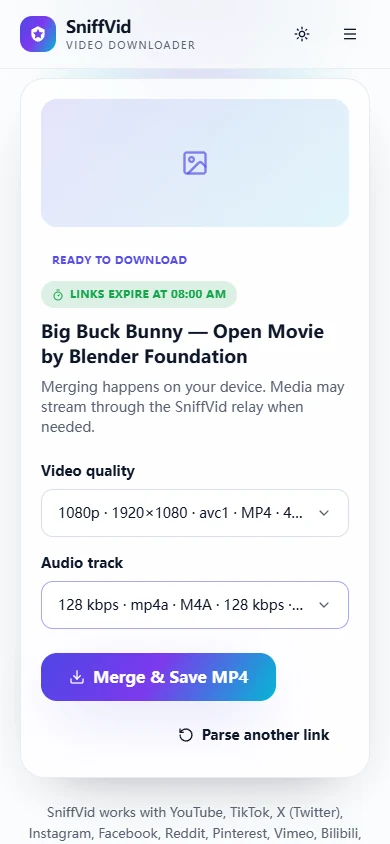
A phone-width result panel: cover, title, both track menus and the merge button stacked in one column.
The result panel on a phone. The two menus stack and truncate their labels; the merge action sits beneath them, though a phone can also save either track on its own.

Background and edge cases

Audio stays in Files

Use Files or a compatible audio player for an audio-only download. Photos is not a music-file library.

Expiry does not remove a saved file

An expired media link needs reparsing before another download. It does not delete a file already saved to Files or Photos.

Frequently asked questions

Open Files and check iCloud Drive → Downloads. Safari’s Downloads button can also locate recent downloads; custom settings may use another folder.

A browser download normally creates a file. Use the file’s share/save action to add a compatible video to Photos.

The code attempts the browser save picker or temporary-storage fallback. Availability varies, so mobile merging is not guaranteed; a desktop browser is a useful fallback.

No. The container and codecs must actually be supported. This tool does not transcode incompatible media.

How this was checked

How this was checked

Reviewed against the current link input, result-panel controls, browser save paths and error handling. Browser storage and source behavior vary; this is a code-based review, not a claim of testing every platform or device.

  • The page-specific note states which behavior was reviewed and which live samples, if any, were tested.
  • Track availability depends on the parsing service. Table sizes are illustrative ranges, not measurements of every video.
  • A source may change or restrict access; the result panel is the reference for the current link.

Who maintains it

Written and reviewed by SniffVid Team, the people who build and run SniffVid. Guides answer practical questions and are updated as capabilities change. Product promotions are labeled separately. Read the editorial policy

Published · Last reviewed · Content last reviewed

Sources and further reading

Primary documentation for the claims on this page. Nothing here cites another downloader as an authority on how downloads behave.

Keep reading

Other tutorials, and the tool pages for the sites people download from most.

Tool pages for the biggest platforms

Dedicated pages combine the downloader with platform-specific link instructions and limits. Choose one below.