Skip to content
Tutorial

How to merge video and audio into one MP4

Some parsers return picture and sound separately. SniffVid can copy compatible video and audio tracks into one MP4; it does not accept arbitrary local files or re-encode unsupported codecs.

  • No account needed
  • Phone and desktop
  • Public links only

SniffVid TeamPublished Last reviewed

Bot protection

Paste a link above to see every available video, audio and cover download.

By using SniffVid you agree to our Terms of Service and Privacy Policy

The short answer

  • Merge only a complementary video/audio pair returned for the same link.
  • A complete media file needs no merge.
  • The current merge action works from parsed source tracks, not files uploaded from your disk.
  • Keep the page open and allow enough storage; codec and browser support still apply.

These points describe the current download workflow. See the page-specific verification note below for what was checked; upstream availability and returned tracks can change.

Separate landscape-video and audio-waveform tiles beside a larger tile holding both together.
Concept illustration: picture and sound can be separate resources. Use the actual save or merge action offered by the panel.

Step by step

Follow the controls actually offered by the result panel; formats and browser capabilities can vary.

  1. 1

    Check for two track lists

    Use a result marked as separate video and audio. A single complete-file result should be saved directly.

  2. 2

    Choose a matching pair

    If selectors are available, choose one video and one audio track. Check the returned quality and size when supplied.

  3. 3

    Merge and wait for completion

    Press Merge & Save MP4. Follow the browser save action if shown, and keep the tab open until the operation finishes.

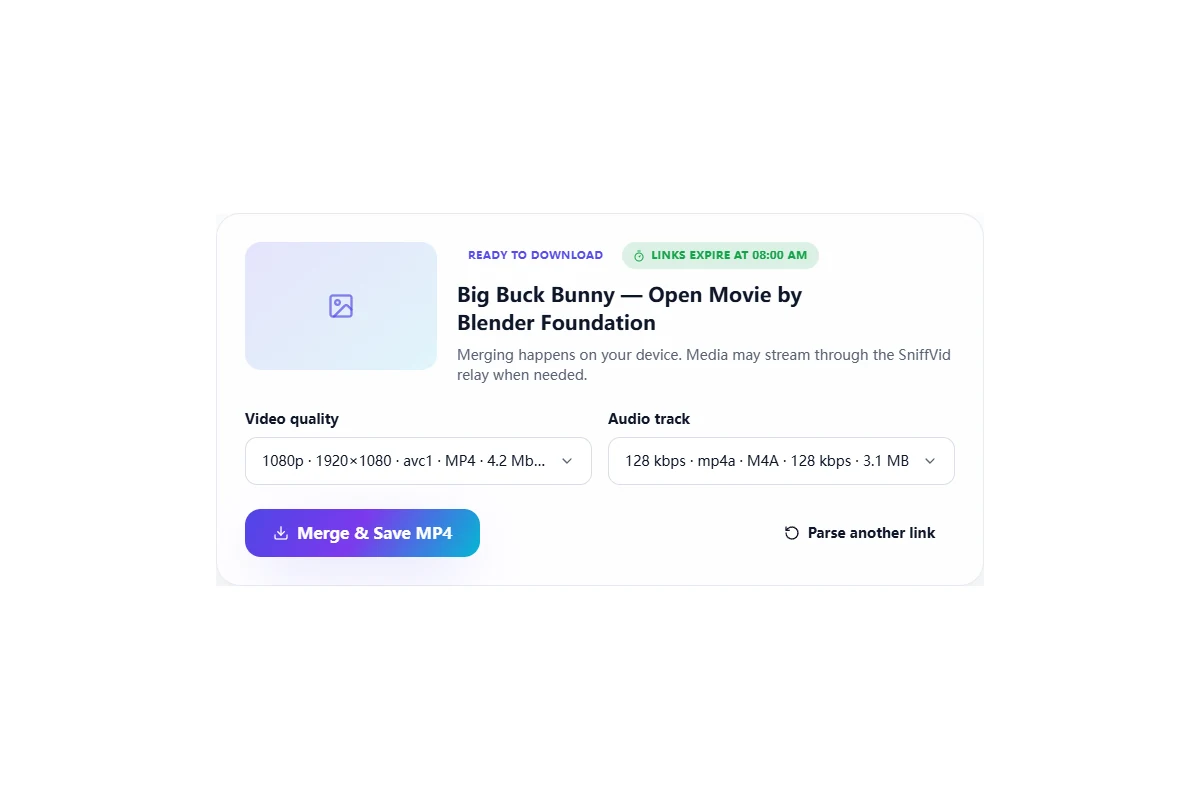
The result panel for a two-list result: a video-quality dropdown, an audio-track dropdown and a Merge & Save MP4 button.
The panel as it actually looks when a platform serves picture and sound separately. Each row carries its format and size; taking one of each arms the merge action.

Recognize a two-track result, choose matching tracks, and finish a browser-side merge without re-encoding.

What merging changes

The app copies encoded media packets into an MP4 container. It does not improve picture quality, convert codecs or create audio missing at the source.

How saving works

The browser first tries showSaveFilePicker. If it is unavailable, the app attempts temporary browser storage and then offers a download. Neither path is guaranteed on every device.

If an error names a codec

Choose a different returned track if one is available. Repeating the same incompatible pair will not turn it into a supported format.

If progress stalls or saving stops

Check network connectivity and available storage. Direct media access may fall back to the relay; source expiry, storage quota or a backgrounded tab can interrupt work.

  • Keep the page active and the device awake until completion.
  • Reparse expired links before starting again.
  • Try a smaller returned track or a desktop browser.

Reference

These tables are shared across the site, so a figure you saw on one page is the figure you see here.

How to read the result panel, by the way the platform serves its media
When the platform…The result panel showsWhat you do
Serves one finished fileA single track with picture and sound already togetherUse the offered save action without merging; completion still requires readable media and a supported browser.
Splits picture and soundTwo lists: video-only tracks and audio-only tracksChoose one complementary track of each kind and merge in a supported browser; phones may have storage or memory limits.
Needs relaying or blocks browser readsThe same tracks, routed through a short-lived relay linkYouTube and X use relaying by default; merging chooses a transport automatically. For other single-file results, try the relay button if offered.
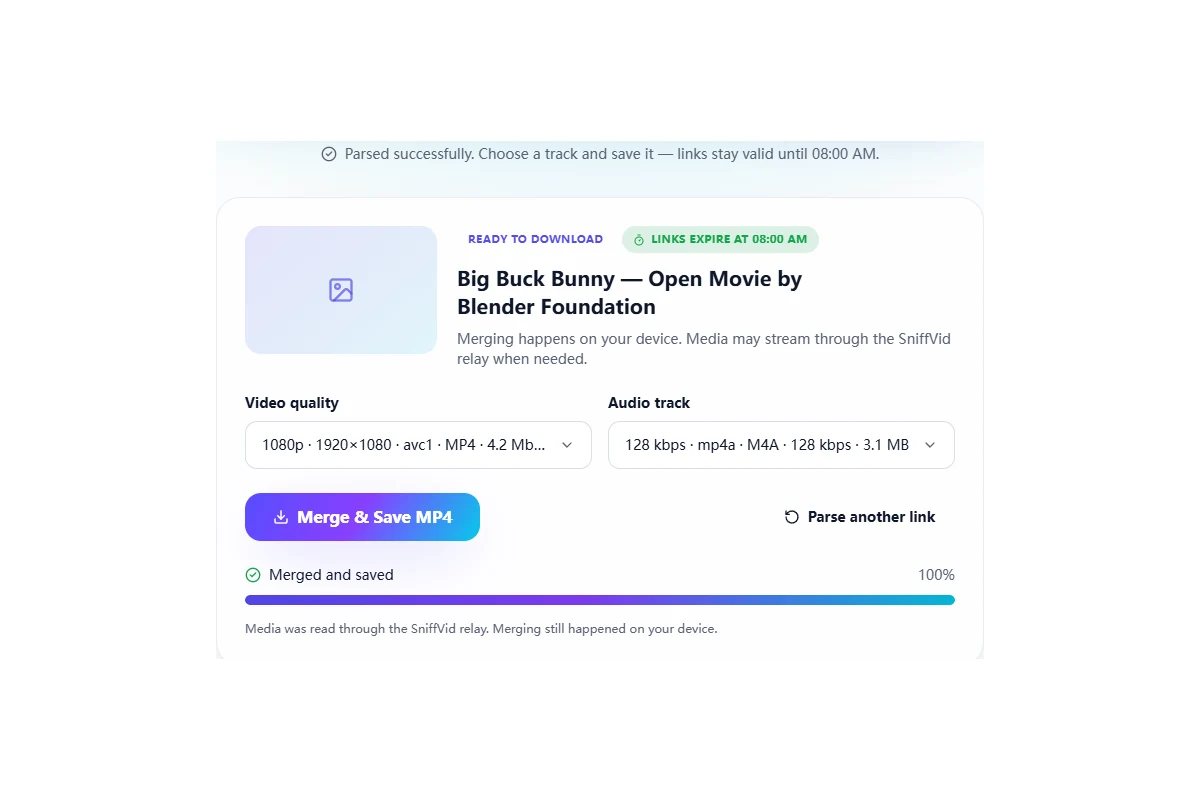
The result panel after an in-browser merge: video and audio lists above a completed bar reading Merged and saved, 100%.
The merge runs in the tab, and the bar follows what the browser has written. The line underneath names the transport the media came through — here the relay — while the joining itself stayed on the device.

Background and edge cases

This is not a local-file editor

To combine files already on disk, use a separate local tool. This page merges the sources returned by the parser.

Check the finished result

Play the beginning and a later point. Confirm that sound is present and the duration is plausible before deleting any other copy.

Frequently asked questions

The current workflow copies encoded tracks without re-encoding. It cannot fix damage or missing data already present in the source.

The app may be using temporary browser storage instead of a file picker. Watch for completion and the resulting download.

No. Both tracks must be supported by the MP4 output. A codec error requires another compatible source or a separate conversion tool.

No. The current action uses tracks returned from a parsed link.

How this was checked

How this was checked

Reviewed against the current link input, result-panel controls, browser save paths and error handling. Browser storage and source behavior vary; this is a code-based review, not a claim of testing every platform or device.

  • The page-specific note states which behavior was reviewed and which live samples, if any, were tested.
  • Track availability depends on the parsing service. Table sizes are illustrative ranges, not measurements of every video.
  • A source may change or restrict access; the result panel is the reference for the current link.

Who maintains it

Written and reviewed by SniffVid Team, the people who build and run SniffVid. Guides answer practical questions and are updated as capabilities change. Product promotions are labeled separately. Read the editorial policy

Published · Last reviewed · Content last reviewed

Sources and further reading

Primary documentation for the claims on this page. Nothing here cites another downloader as an authority on how downloads behave.

Keep reading

Other tutorials, and the tool pages for the sites people download from most.

Tool pages for the biggest platforms

Dedicated pages combine the downloader with platform-specific link instructions and limits. Choose one below.